

Key Takeaways
BrightWork 365 PPM solution can help your project teams overcome common project management challenges by:
-
Tips for using SharePoint for project management
-
Configuring the Quick Launch to create a SharePoint project tracker template
-
Reporting on project work with a SharePoint task list dashboard
-
Capturing project status reports in SharePoint
-
How to use Microsoft Project and SharePoint together to manage a project schedule
The steps and screenshots of the template in this article apply to SharePoint 2016, SharePoint 2019, and SharePoint Server Subscription Edition. The template used in this guide requires SharePoint classic mode.
SharePoint On-Premises offers team sites, document management, and seamless integration with Microsoft Project, making it ideal for project and portfolio management.
A project site in SharePoint centralizes all project information in one place, improving visibility, reporting, and collaboration. With simple configurations, you can update your site to suit any project.
You’ll learn how to use SharePoint Quick Launch, task lists, and reports, as well as sync them with Microsoft Projects.
Download a Free SharePoint Template
40,000 organizations use BrightWork to manage their projects and portfolios on SharePoint On-Premises (2019, 2016).
How to Customize SharePoint for Your Projects
Microsoft SharePoint, launched in 2001, is a web-based platform designed to help organizations build intranets, manage documents, and collaborate in a secure environment.
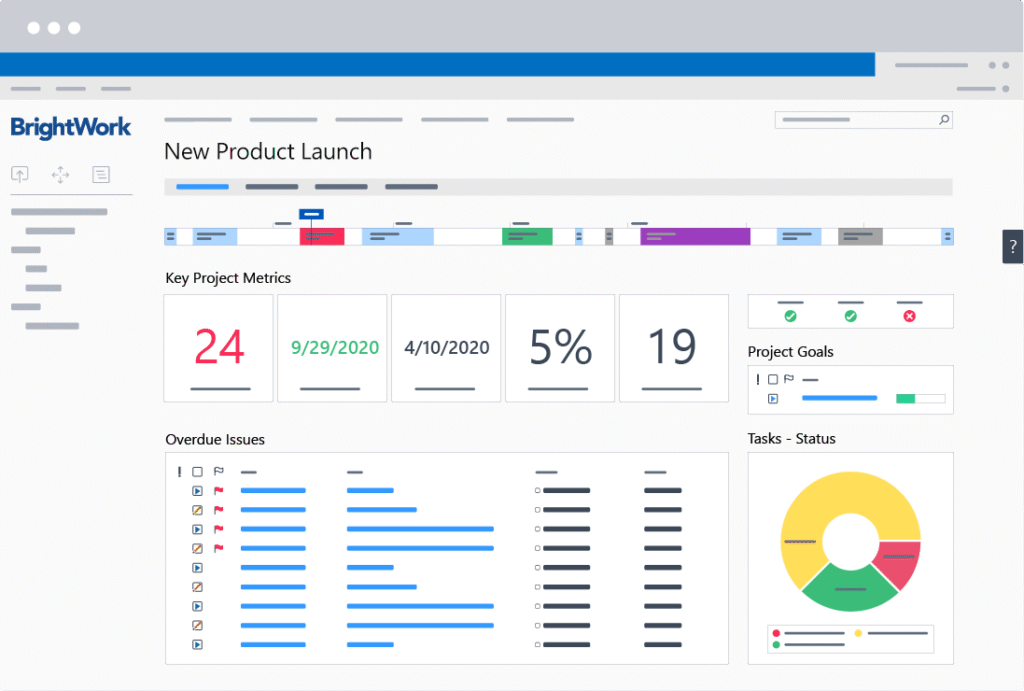
Main Features of SharePoint
SharePoint features and functionality include:
Document management and sharing
Intranet portals
Newsfeed
Wikis and forums
Knowledge management
Security settings such as encryption and permissions.
The structure of a SharePoint site, especially lists and web parts, makes it easy to organize and manage a project.
4 Quick Steps To Set Up SharePoint For Project Management
Follow these four steps to set up your site for success. These steps help organize your processes, track tasks, create reports, and sync with Microsoft Project.
Main Features of SharePoint
SharePoint features and functionality include:
Document management and sharing
Intranet portals
Newsfeed
Wikis and forums
Knowledge management
Security settings such as encryption and permissions.
The structure of a SharePoint site, especially lists and web parts, makes it easy to organize and manage a project.
1. Manage Project Processes with Quick Launch
In SharePoint, you can create team sites, which are essentially web pages for teams to collaborate and move work forward.
Customize the Quick Launch – navigation located on the left-hand side of the site – to map your project management processes to the site. Add lists and apps to manage project elements such as:
The project statement
Project issues
Risks
Tasks
Goals
Change requests
Project status reports
Add as much or as little process as you want – it’s up to you to decide what your team is ready for. Group the links in the Quick Launch to match project phases.
In the screenshots below, you’ll see an example of how this can be done in SharePoint.
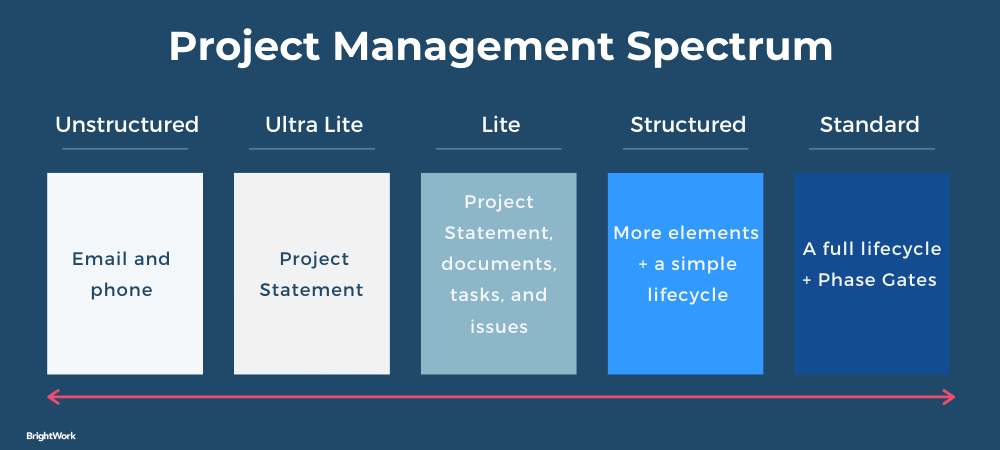
Following this model, it’s easy to configure the Quick Launch to support different project processes. It serves as a guide for the team and provides access to various project reports to keep the project on track.
2. Track Tasks with Lists and Dashboards
All SharePoint team sites come with a Project Tasks list, which you can use to create the project schedule and manage the project plan.
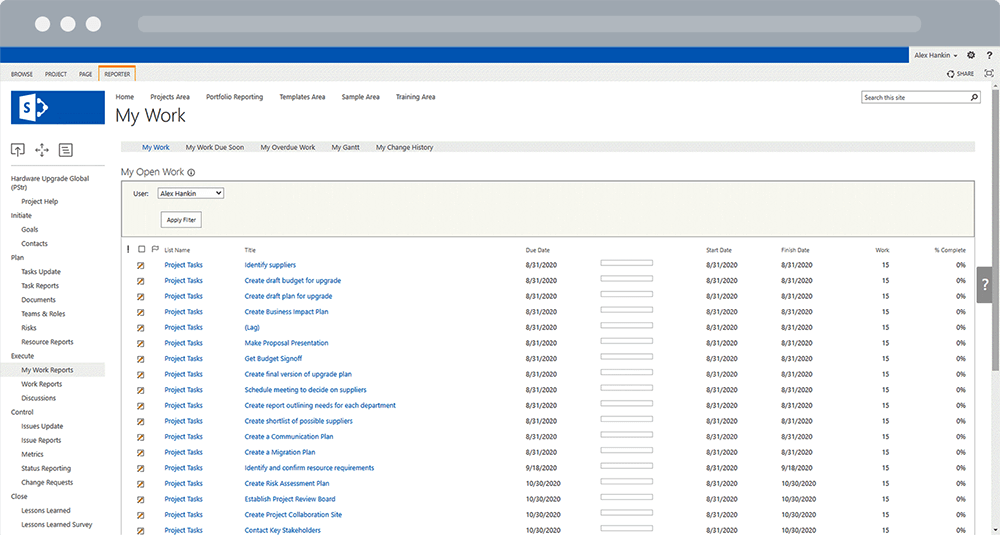
Once the project is planned and responsibilities are assigned, create a series of work reports to track the tasks and work associated with the project.
With tasks in place, you can add custom views to the list for easy tracking. These views can include:
All Tasks
A view of the Tasks List with no filter shows the full project plan.
My Task
A view of the Tasks List with parameters “assigned to equals me” (the logged-in user) – giving each team member a place to manage their tasks.
This provides the project manager with a quick view of overall progress as team members update their tasks.
Late Tasks
A view of the Tasks List with the parameter “status does not equal to completed” – providing the project manager and stakeholders an indication of the work that is still outstanding.
Overdue Tasks
A report with the parameters of “status does not equal to completed” and “due date is less than today” – helps identify overdue tasks, allowing for timely adjustments to keep the project on track.
3. Create Project Status Reports
It’s really easy to create project status reports and dashboards using a list and workflow in SharePoint. Enter project information in a datasheet view, and the workflow will turn it into a project status dashboard.
When you stop editing the list, the datasheet will be transformed into a project status report with R-A-G status and other data such as health, time, cost, comments, and percent complete. Historical reports reflect the project’s status over time.
4. Sync Microsoft Project with SharePoint
The Tasks List in your SharePoint project site syncs seamlessly with Microsoft Project (Professional Desktop) to manage the project schedule.
SharePoint team members can access the plan in real time and manage their work using the various work reports and task management views. And it really could not be easier!
In the video below, you can see that SharePoint to Microsoft Project synchronization is as simple as clicking a button.
How to Use a SharePoint Template?
SharePoint provides all the functionality you need for effective project management. And one of my favorite features of SharePoint is the ability to save sites as templates.
Once your project site is set up the way you want, save it as a template to use over and over again, saving time and effort.
Get a Head Start with BrightWork’s Template
Configuring out-of-the-box SharePoint for project management requires both SharePoint and project management knowledge. If your site is not right for the project, you could run into some problems along the way.
That’s where the Free SharePoint Project Management Template from BrightWork will give you a head start.
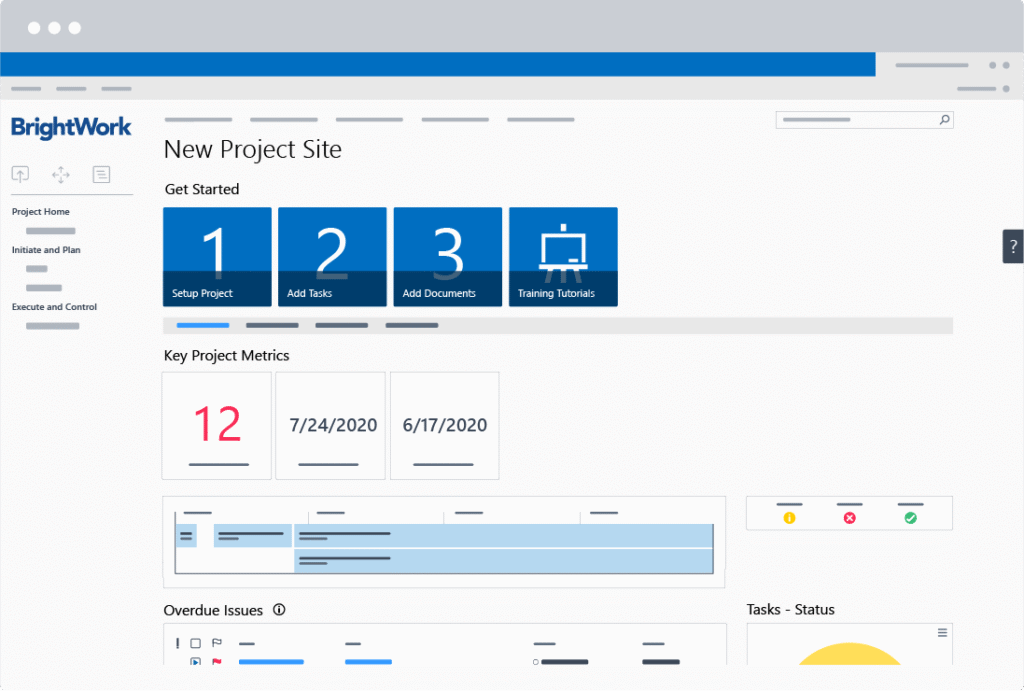
Built by project managers for project managers, this template includes all the essentials to help you plan, track, and adjust your project:
Getting started tiles
Project Homepage with ‘at-a-glance’ information
Quick Launch
Wiki (Collaborative Project Management Process)
Tasks list (mapped to the Wiki)
Project Reports and Metric Tiles
Document repository.
Download a Free SharePoint Template
40,000 organizations use BrightWork to manage their projects and portfolios on SharePoint On-Premises (2019, 2016).
Manage Projects Efficiently with SharePoint Online on Microsoft 365
Microsoft 365 allows users to use cloud technology by combining familiar project management tools in one subscription. SharePoint Online is a cloud-based collaborative platform that organizations use to share and manage information.
It provides a secure place to store files for your project team to work together and access at any time from any device.
BrightWork 365 enhances SharePoint Online by integrating it with Microsoft Teams, Power Automate, Power BI, and Power Apps to create a complete project portfolio management solution.