
Key Takeaways
-
The purpose of Project Status Reports is to provide updates on project progress, including budget, timeline, and any risks or issues.
-
Best practices for project stats reports include knowing your audience, consistency, ease of access, and clarity.
-
Centralizing project status reports in Microsoft 365 can help to standardize the reporting process.
-
BrightWork 365 offers customizable templates to track and manage project status reports in Microsoft 365.
What are Project Status Reports
Project Status Reporting is a crucial part of any project’s journey. Your reporting process is one of the most important means to collaborate with your project team members, and to keep your project sponsors and other stakeholders updated about the progress of projects. Project Status Report Templates help make this process easier through standardization.
Indeed defines Project Status Reports as ‘a document that provides updates about the progress being made on a particular project.’
The main purpose of a Project Status Report is to keep all the important information on a project in one place. It should provide project updates such as progress, remaining budget, timeline, etc. with a quick glance.
The project reports are also valuable to projects as they help to communicate any risks or issues that might derail a project. A quick look at the project status report should inform the project teams if there are any necessary adjustments needed to keep the project on track.
Create your project status reports with Microsoft 365
Watch a demo of BrightWork 365 project and portfolio management templates for Microsoft 365, Power Platform, and Teams.
Project Status Report Template
o create your next project status report, we recommend that you include the following items from our project status report template:
Summary
Project Name (with link to project site)
Project Stage
Project Manager
Portfolio
Program
Period Ending
Key Accomplishments
Significant Challenges
Upcoming Focus
Schedule
Current Start Date
Current Finish Date
Target Start Date
Target Finish Date
Project Info
Overall Status
Percent Complete
Percent Complete Comment
Health (KPI)
Health Comment
Cost (KPI)
Cost Comment
Time (KPI)
Time Comment
Scope (KPI)
Scope Comment
Project Status Report Template
Let us take you a step further to see how you leverage your Microsoft 365 and the Power Platform for project status reporting.
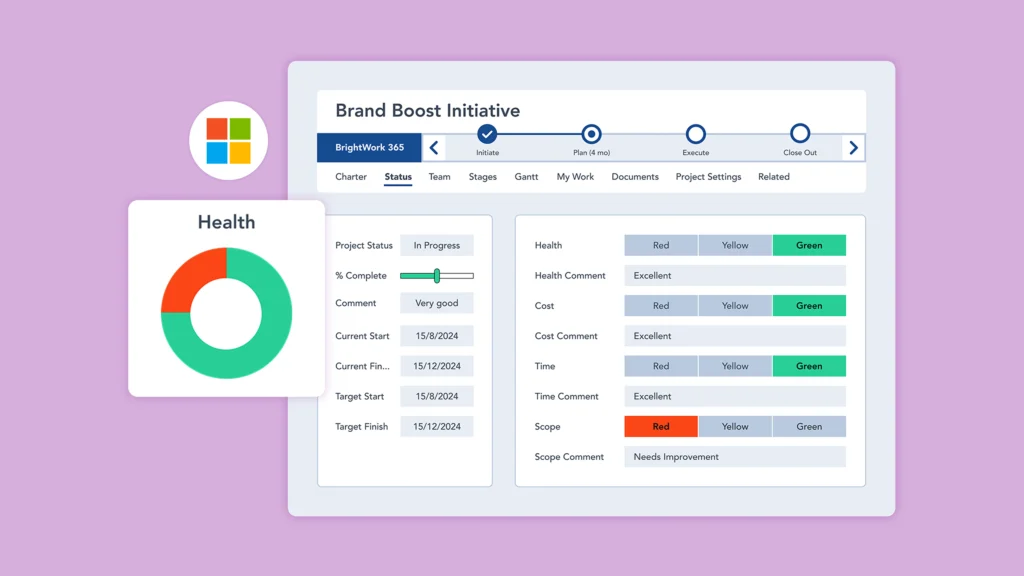
All BrightWork 365 project templates have two project report tabs – Status and Status Reports – that can be used to track and share how a project is progressing at any point in time.
Status
The Status tab let’s you capture what’s happening right now. It’s not so much a snapshot of the project but more editable dashboard where you can change the information as the project progresses (such as project status, percent complete, and KPIs).
Status Reports
Status Reports is where you can capture a new status report, as well as look at the historical list of prior status reports.
Creating a new status report will pull in the information you have updated on the Status tab at that point in time. There are also some fields where the Project Manager can add commentary such as key accomplishments, significant challenges, and upcoming focus.
Once the project status report is ready, it can be emailed to the relevant project stakeholders, as well as committed to the Project Status Report library in BrightWork 365 (along with all the other project status reports, creating a nice summary timeline of how the project is going.
Power BI Project Status Dashboard
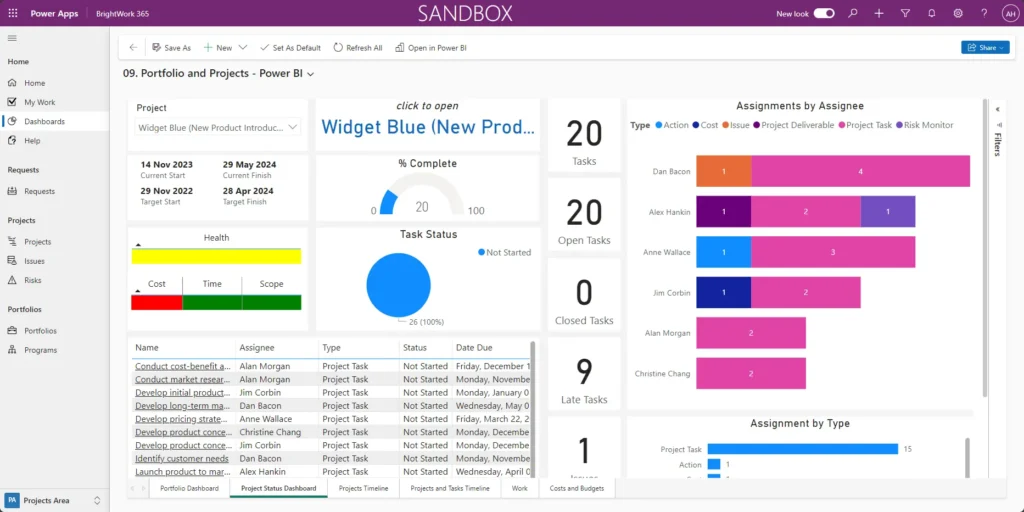
BrightWork 365 integrations with Power BI allows users to use interactive, data-driven dashboards for reporting. If you are juggling to report on data-heavy projects across multiple portfolios, then you might like the in-built Power BI reporting dashboards. The Project Status Dashboard helps keep users better informed about how projects throughout the system are progressing in a convenient single location, with the ability to quickly switch between projects.
Status data is pulled from the Status tab in projects. Users can access the Power BI Project Status report by clicking the Project Status Dashboard tab in the report view Portfolio and Projects – Power BI. You can easily switch between projects with a convenient project selector.
Here’s an example of what a Power BI Project Status Dashboard could look like.
Create your project status reports with Microsoft 365
Watch a demo of BrightWork 365 project and portfolio management templates for Microsoft 365, Power Platform, and Teams.